Ai Overview
Architecture Over UI: iOS development is systems engineering, not design work; memory management and lifecycle handling determine long-term app success. Offline-First Is Essential: 15–20% of user sessions face network issues; apps must handle unreliable connectivity, not ideal conditions. Real Cost Reality: Simple apps cost $40K–$80K, enterprise apps $200K–$500K+, with 15–20% annual maintenance of initial build cost. We once had a client come to us with beautiful Figma mockups and a $50,000 budget.
Key Takeaways: iOS App Architecture & Engineering Reality
- Architecture Over UI: iOS development is systems engineering, not design work; memory management and lifecycle handling determine long-term app success.
- Apple’s Walled Garden: App Store review rules, device diversity, and frequent OS updates shape architectural decisions—compliance planning must start early.
- State Management Is Critical: Poor state handling silently kills apps; MVVM with Coordinators enables scalable, maintainable architectures.
- Offline-First Is Essential: 15–20% of user sessions face network issues; apps must handle unreliable connectivity, not ideal conditions.
- Performance Is Non-Negotiable: iOS terminates apps without warning when limits are breached; threading, rendering, and battery optimization are survival requirements.
- Security by Design: Use Keychain for sensitive data, never trust client-side security, and enforce all real protection through server-side validation.
- Real Cost Reality: Simple apps cost $40K–$80K, enterprise apps $200K–$500K+, with 15–20% annual maintenance of initial build cost.
- Testing Saves Money: Unit and device testing catch failures early; production bugs cost up to 10× more to fix than pre-release issues.
After shipping dozens of iOS applications for startups, Fortune 500s, and everything in between, we’ve learned that most organizations fundamentally misunderstand what they’re buying when they commission an iOS app. They think they’re purchasing screens and buttons. What they’re actually investing in is a complex engineering system that must survive Apple’s ecosystem, user expectations, and the brutal realities of mobile computing.
This guide shares what we’ve learned from the trenches—the mistakes that cost six figures to fix, the architecture decisions that saved projects, and the uncomfortable truths about iOS development that most agencies won’t tell you until it’s too late.
1. Why iOS App Development Is an Engineering Decision, Not a UI Project
We once had a client come to us with beautiful Figma mockups and a $50,000 budget. “We just need someone to build what’s in these designs,” they said. Six months and $180,000 later, they understood why we’d tried to explain that iOS development isn’t Photoshop for phones.
The uncomfortable reality: Your users don’t care about your designs. They care that the app doesn’t crash when their subway goes through a tunnel, doesn’t drain their battery during their commute, and doesn’t lose their data when iOS force-quits it because you’re using too much memory.
Here’s what actually determines whether your iOS app succeeds:
- System lifecycle management – Understanding that iOS can kill your app at any moment and users expect it to resume exactly where they left off
- Memory constraints – That smooth animation means nothing if it causes the OS to terminate your app on an iPhone 12 with 4GB RAM
- Background execution limits – Apple gives you seconds, not minutes, to complete background work
- Thread management – Blocking the main thread for 100ms makes your app feel broken, even if it looks perfect
Example from production: We built an enterprise document scanner. The UI was gorgeous. But it would crash after scanning 50 pages because nobody had architected proper memory management for image processing. The redesign wasn’t visual—it was architectural. We implemented streaming image processing, batch compression, and careful memory lifecycle management. The UI didn’t change. The app stopped crashing.
Key insight: iOS development is systems programming wrapped in a UI framework. Treat it like building a database engine that happens to have a nice interface, not like building a website with animations.
2. Understanding Apple’s Ecosystem Before Writing Code
Apple isn’t just a platform—it’s a walled garden with very specific rules about what can be planted, how tall it can grow, and what gets pulled out if it becomes unruly.
The App Store gauntlet: Before a single user sees your app, it must pass review. This isn’t a checkbox exercise. We’ve seen apps rejected for:
- Using private APIs that showed up in dependency libraries
- Not properly explaining why location permissions are needed (even though it was “obvious”)
- Having placeholder text in a settings screen that wasn’t customer-facing
- Background audio is playing for one second too long after the user paused
Device diversity reality:
Your app needs to run on devices spanning a 7-year hardware range:
- iPhone SE (2020) – A15 chip, 3GB RAM, 4.7″ screen
- iPhone 16 Pro Max – A18 Pro chip, 8GB RAM, 6.9″ screen
- iPad Pro 12.9″ – M2 chip, 16GB RAM, 12.9″ screen
That’s a 5x difference in RAM and a 300% difference in screen size. Your “simple” list view has radically different performance characteristics across this range.
OS upgrade patterns that will hurt you:
- Apple releases major iOS updates in September
- 50-70% of users upgrade within 30 days
- Your app must support the new OS on day one or users will trash your ratings
- You need to maintain compatibility with iOS versions back 2-3 years (iOS 15+, currently)
- Beta testing starts in June—that’s your absolute deadline
Architecture decision example:
We built an app that used Core Data for local storage. iOS 17 introduced a breaking change in how Core Data handled certain relationships. Because we’d properly abstracted our persistence layer behind a repository pattern, we modified one class and tested. Total fix time: 3 hours. Another team with Core Data calls spread throughout their view controllers? Two weeks of emergency patches.
3. Core Building Blocks of an iOS Application
Every iOS app is more than code in a repository. Understanding the infrastructure makes the difference between shipping and struggling with certificate errors at 2 AM before launch.
App target architecture:
- Target – A single buildable product (your app, extensions, widgets)
- Bundle ID – Reverse DNS identifier (com.company.appname) that uniquely identifies your app forever
- Entitlements – Capabilities your app has permission to use (push notifications, iCloud, etc.)
- Info.plist – Configuration file declaring permissions, supported devices, and required capabilities
The provisioning nightmare nobody warns you about:
Code Signing Components:
- Development Certificate – Proves you’re a registered Apple developer
- Distribution Certificate – Allows App Store submissions
- Provisioning Profile – Links your certificate, bundle ID, and devices
- App Store Connect – Where you manage app metadata, versions, and TestFlight
Real failure story: We inherited a project where the previous team had built everything using the CEO’s personal Apple Developer account. When he left the company, they lost access to update the app, which had 100,000+ downloads. They had to create a new bundle ID and ask users to download a “new” app—cost: 40% user loss and three months of support hell.
App lifecycle phases:
Not Running → Inactive → Active → Background → Suspended → Terminated
Your app can move between these states without warning. If you’re not properly saving state at each transition, you’ll lose user data. Not maybe. Definitely.
Key principle: Every state transition is a potential crash point. Architect accordingly.
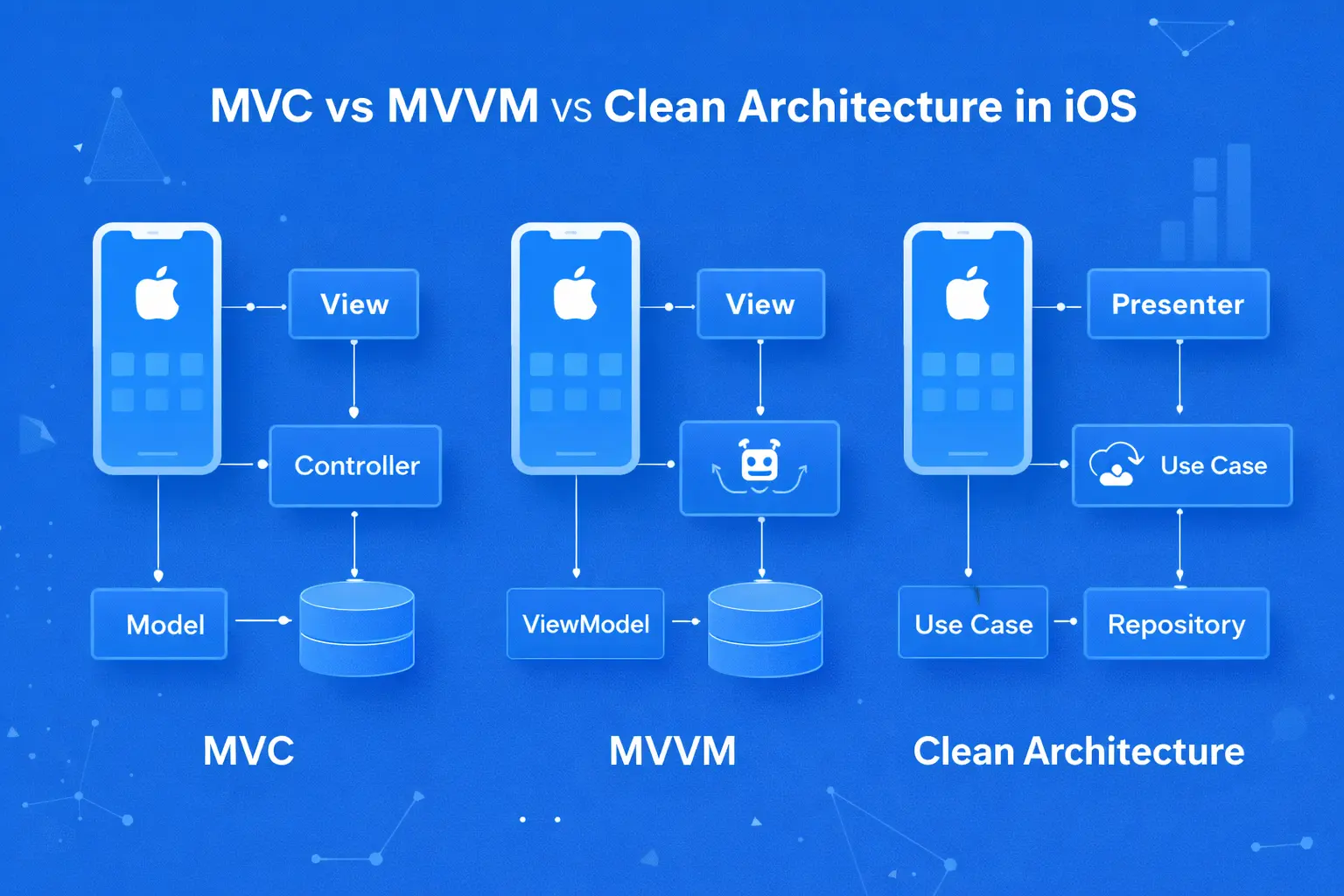
4. iOS Application Architecture Patterns Used in Production
We’ve built apps using MVC, MVVM, VIPER, Clean Architecture, and probably some patterns that don’t yet have names. Here’s what actually survives contact with real projects.
MVC (Model-View-Controller) – Apple’s default:
-
- What it is – Views talk to Controllers, Controllers talk to Models
- Reality check – Controllers become “Massive View Controllers” with 2000+ line files
- When it works – Simple apps, prototypes, single-developer projects
- When it fails – Any app with a complex state, multiple developers, or long-term maintenance
MVVM (Model-View-ViewModel) – The industry standard:
- What it is – ViewModels sit between Views and Models, handling presentation logic
- Why we use it – Testable, scalable, plays well with SwiftUI
- Key insight – ViewModels should never import UIKit. If they do, you’re doing it wrong
Actual implementation:
Model (Data) ← Repository (Storage) ← ViewModel (Logic) ← View (UI)
VIPER (View-Interactor-Presenter-Entity-Router) – Enterprise overkill:
- What it is – Aggressive separation of concerns with 5 layers
- When we use it – Large teams (10+ developers), financial/healthcare apps, multi-year projects
- Honest assessment – Most projects don’t need this. It’s verbose, has high ceremony, and junior developers will struggle
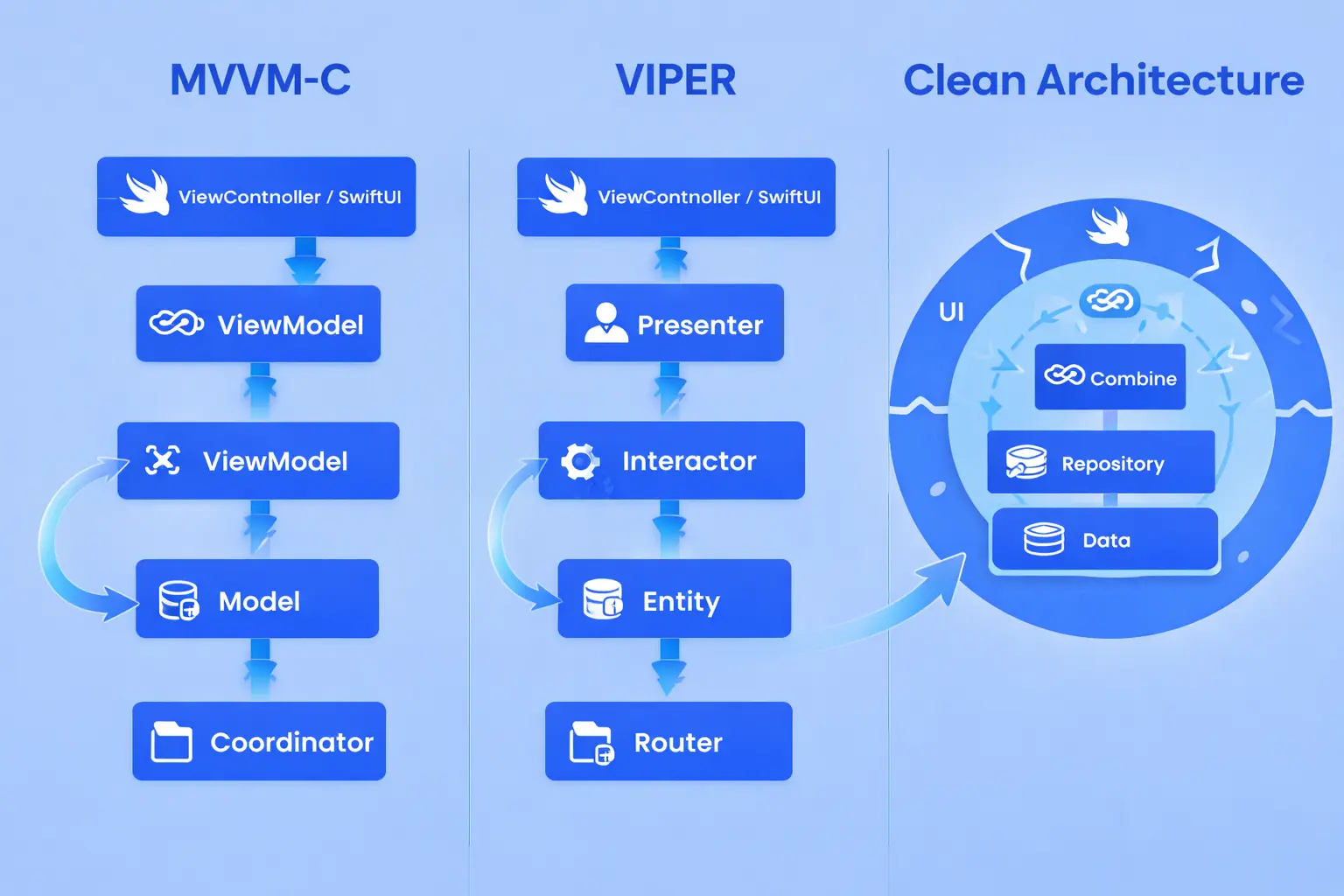
The pattern we actually recommend for most clients:
“MVVM with Coordinators”
- ViewModels – Handle business logic and state
- Coordinators – Manage navigation flow
- Services – Handle data operations (network, storage)
- Models – Pure data structures
Why this works:
- Testable (ViewModels and Services are pure logic)
- Scalable (adding features doesn’t require touching navigation)
- Maintainable (clear separation of concerns without VIPER’s overhead)
- SwiftUI-compatible (migrate incrementally)
Production lesson: We rebuilt a 50-screen enterprise app from MVC to MVVM-Coordinator. The initial refactor took 6 weeks. The payoff: new feature development time dropped 60% because developers could work on isolated ViewModels without breaking navigation or other screens.
5. Managing State, Navigation, and Data Flow in iOS Apps
Poor state management is the silent killer of iOS apps. Not crashes. Not UI bugs. An inconsistent state that makes your app feel “weird” and drives users away before they can articulate why.
The state management hierarchy:
Local State (View-level):
- SwiftUI:
@State,@Binding - UIKit: View controller properties
- Lifespan – Exists while the view is loaded
- Use case – UI-only state (is dropdown open, text field content)
Screen State (ViewModel-level):
- Observable objects, Combine publishers
- Lifespan – Exists while the screen is in memory
- Use case – Screen-specific business logic
Global State (App-level):
- Singleton managers, environment objects
- Lifespan – Entire app lifecycle
- Use case – User session, app configuration, feature flags
The cardinal sin: Storing business state in view controllers. We once audited an app where the user’s cart items were stored as a property in the checkout view controller. When the view was dismissed and recreated, the cart vanished.
Navigation patterns that scale:
Coordinator Pattern Implementation:
 Protocol: Coordinator
 - navigationController: UINavigationController
 - childCoordinators: [Coordinator]
 - start()

 LoginCoordinator handles → Login → Forgot Password → Email Verification
 HomeCoordinator handles → Home → Profile → Settings
Why coordinators matter: View controllers shouldn’t know navigation exists. A ProductDetailViewController should trigger an event like “userTappedBuyNow”. The coordinator decides whether to navigate to checkout, show a login modal, or present an error.
Data flow anti-patterns we see constantly:
- Passing data through 4+ levels of view controllers
- Using NotificationCenter for everything (debugging nightmare)
- Views directly modifying the database state
- Delegates with 15+ optional methods
What works instead:
- Unidirectional data flow – State flows down, events flow up
- Single source of truth – One place owns each piece of state
- Explicit dependencies – Inject ViewModels, don’t access singletons directly
Real example: An app we rescued was crashing randomly during navigation. The issue: view controllers were deallocating while async operations were still running, causing delegate callbacks to crash. Solution: Tie async operation lifetime to ViewModel lifecycle, cancel operations in deinit, use weak references properly. Crashes dropped to zero.
6. Backend Architecture Expectations from an iOS Client
Your iOS app isn’t a standalone system—it’s a client in a distributed system where half the infrastructure is a device sitting in someone’s pocket with spotty Wi-Fi.
API contract requirements:
Version Management:
- Header-based versioning –
API-Version: 2024-11-01 - Backward compatibility – Old app versions must keep working
- Deprecation timeline – 90 days minimum before breaking changes
Real horror story: A client shipped a backend update that changed a date format from ISO 8601 to Unix timestamps without versioning. 200,000 users on the old app version couldn’t load data immediately. They had to rush-release a hotfix and push it through App Store review (2-3 day delay minimum).
Latency tolerance design:
Your app will be used in elevators, basements, and rural highways. Design for this reality:
- Timeout strategy – 30s for data fetch, 60s for large uploads
- Progressive enhancement – Show cached data immediately, refresh in the background
- Retry logic – Exponential backoff (1s, 2s, 4s, 8s delays)
- Circuit breaker – Stop hitting failing endpoints to preserve battery
Error contracts that don’t suck:
Bad API response:
{"error": "Internal server error"}
Useful API response:
{
  "error": {
    "code": "INSUFFICIENT_FUNDS",
    "message": "Purchase requires $10.00, account balance is $7.50",
    "user_message": "You don't have enough credits for this purchase.",
    "retry_after": null
  }
}
Key principle: iOS apps can’t fix bad APIs. If your backend returns HTTP 500 with no details, the best we can do is show “Something went wrong.” That’s a garbage user experience, but it’s an API problem, not an app problem.
Offline sync requirements:
For any app where users create content:
- Conflict resolution strategy – Last-write-wins, merge, or manual?
- Delta sync – Only send changes, not entire datasets
- Operation queue – Persist failed requests and retry on connectivity
- Optimistic updates – Update UI immediately, sync in background
Example architecture:
User Action → Local DB (immediate) → Sync Queue → API → Confirm/Rollback
7. Local Storage Strategy: When to Use Core Data, SQLite, or Files
Storage is where most iOS developers make expensive mistakes. Not because the tech is hard, but because they pick the wrong tool.
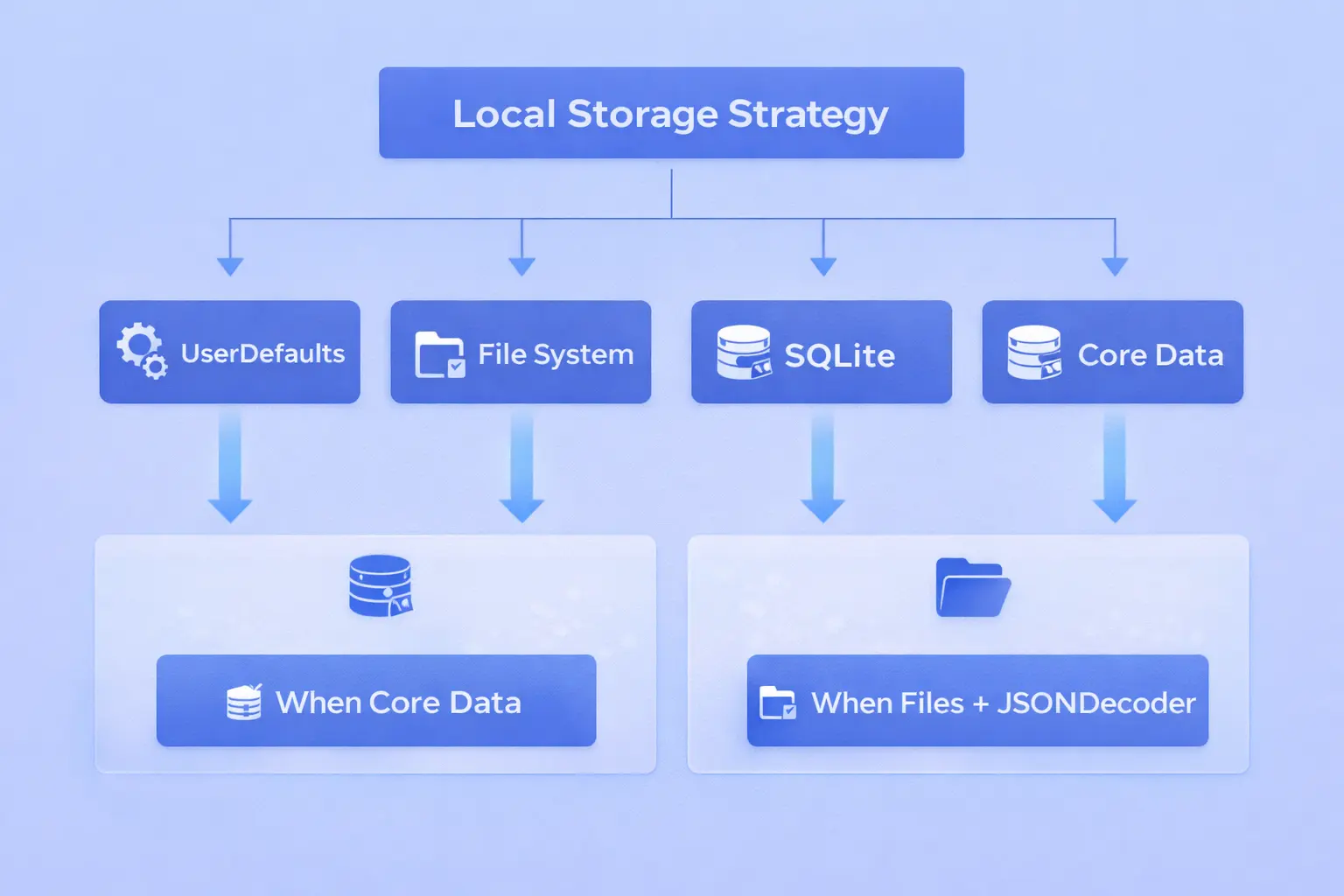
Storage option breakdown:
UserDefaults:
- Best for – Small key-value pairs (settings, preferences)
- Size limit – ~4MB before performance degrades
- Use case – User settings, feature flags, simple auth tokens
- Don’t use for – Large datasets, structured data, anything over 100 keys
File System:
- Best for – Images, documents, large blobs
- Patterns – Cache directory (can be cleared), Documents directory (backed up)
- Use case – Profile pictures, PDFs, cached API responses
- Key warning – iOS will delete files in /tmp and /Caches without warning when storage is low
SQLite (raw):
- Best for – Complex queries, custom performance tuning
- Reality – Most projects don’t need this complexity
- Use case – Apps with SQL expertise on team, porting from Android
- Pitfall – You’re responsible for migrations, threading, and corruption handling
Core Data:
- Best for – Structured data with relationships, offline-first apps
- Apple’s take – Official recommended solution
- Learning curve – Steep. Expect 2 weeks before developers are productive
- Sweet spot – Apps with complex data models and multiple entity types
When we choose Core Data:
- More than 5 related data entities
- Need for complex queries and filtering
- Offline-first architecture required
- iCloud sync needed (works natively)
When we choose files + JSONDecoder:
- Simple data structures
- API responses we cache
- Need for flexibility
- Small team without Core Data expertise
Real production decision: E-commerce app with products, categories, reviews, cart, orders. That’s 5+ entities with complex relationships. Core Data was the right call. The same company’s marketing content app with just blog posts and images? Files were plenty.
Migration nightmare story: App shipped with a broken lightweight migration. When users upgraded, their data was corrupted. Apple doesn’t have a “sorry, redownload the old version” button. Users lost data. Ratings tanked. Fix required emergency patch and custom recovery code.
Lesson: Always test storage migration paths. Run migration code on large datasets. Have a “nuclear option” that wipes and resyncs from the server if migration fails.
8. Offline-First Design in Real iOS Applications
“Just use the network when available” is not an architecture strategy. It’s wishful thinking.
Network reliability statistics from our app analytics:
- 15-20% of sessions experience network issues
- The average user experiences 2-3 disconnections per day
- Subway, elevator, and parking garage usage is significant
- Background app refresh occurs without a network 40% of the time
Offline-first principles:
Read Path:
User Request → Check Local Cache → Return Immediately → Background Refresh → Update UI
Not:
User Request → Show Spinner → Network Call → Hope It Works → Maybe Show Data
Sync strategy patterns:
Eventually Consistent Model:
- Users create/edit content locally
- Changes queued for upload
- Sync happens in the background
- Conflicts resolved server-side
Implementation requirements:
- Pending operations queue – Persisted to disk
- Operation IDs – Track what’s synced vs pending
- Conflict resolution – Defined strategy (timestamp, version, manual)
- Status indicators – User knows what’s synced vs local-only
Real example – Note-taking app:
    User edits note → Save locally (instant)
                → Add to sync queue
                → Background task syncs to server
                → Server responds with conflicts
                → App merges or flags for user review
UX implications:
Users must know:
- Sync status – “Synced,” “Syncing,” “Waiting for network”
- Conflict state – “Your changes conflict with the server, review needed”
- Offline mode – “You’re offline, changes will sync when connected.”
Battery and data concerns:
- Sync in batches, not per-edit
- Use the BackgroundTasks framework, not timers
- Respect Low Power Mode
- Make sync pauseable if the user is on cellular
The hard truth: Offline-first doubles development time for complex apps. But it’s the difference between a 4.5-star app and a 2-star app full of “crashes when I lose signal” reviews.
9. Performance Engineering on iOS Devices
Users don’t care about your architecture. They care that scrolling is smooth, that the app opens quickly, and that their battery isn’t dead by 2 PM.
Memory limits that will kill you:
iOS Memory Limits by Device:
- iPhone SE (4GB RAM) → ~1.5GB before termination
- iPhone 14 Pro (6GB RAM) → ~2.5GB before termination
- iPad Pro (16GB RAM) → ~5GB before termination
Critical reality: iOS doesn’t warn you. It doesn’t give you time to clean up. It just terminates your app with SIGKILL. Users see a crash. You see nothing in Crashlytics because it’s not a crash—it’s an execution.
Common memory killers:
- Loading full-resolution images without downsampling
- Keeping view controllers in memory after dismissal
- Caching entire API responses in-memory
- Holding references in closures
Threading fundamentals:
The Main Thread Rule:
ALL UI UPDATES MUST HAPPEN ON THE MAIN THREAD
This means:
- Network callbacks → background thread
- Database queries → background thread
- Image processing → background thread
- Updating UILabel.text → MAIN THREAD
Real bug we fixed: App had a 2-second delay when tapping buttons. The investigation found they were performing database writes on the main thread, blocking UI updates. Moved to background thread, added 30ms delay to return to main thread for UI update—perceived delay: zero.
Rendering performance targets:
- 60 FPS – 16.67ms per frame on standard displays
- 120 FPS – 8.33ms per frame on ProMotion displays
- If you miss the deadline, Frame drops, choppy scrolling
UITableView / UICollectionView optimization:
- Cell reuse (not optional, required)
- Async image loading
- Height caching
- Avoiding auto-layout for complex cells
- Prefetching for expensive operations
Battery drain realities:
What murders battery:
- Location updates (especially continuous)
- Background audio (even if silent)
- Network polling (even with Keep-Alive)
- CPU-intensive operations
- Constant sensor access (accelerometer, gyroscope)
What saves battery:
- Batch network requests
- Use Significant Location Change over continuous
- Respect Low Power Mode APIs
- Pause background operations when backgrounded
- Profile with Instruments’ Energy Log
Lesson from production: The fitness app was getting “drains my battery” reviews. Profiling showed they were updating UI at 60 FPS even when the app was in the background. Simple fix: pause updates when the app is backgrounded. Battery usage dropped 80%.
10. Security Architecture in iOS Applications
iOS is more secure than most platforms, but that doesn’t mean your app is secure by default. Security is architecture, not a feature you add at the end.
Keychain fundamentals:
The Keychain is iOS’s secure, encrypted storage. Use it for:
- Authentication tokens
- API keys
- Passwords
- Credit card data (if you must store it)
- Encryption keys
Do NOT use UserDefaults or files for sensitive data. They’re accessible to anyone who extracts the app’s container.
Keychain access levels:
kSecAttrAccessibleAfterFirstUnlock– Available after first device unlock (most common)kSecAttrAccessibleWhenUnlocked– Only available while unlocked (more secure)kSecAttrAccessibleWhenUnlockedThisDeviceOnly– Never backed up to iCloud
Biometric authentication strategy:
Face ID / Touch ID implementation:
LAContext().evaluatePolicy(.deviceOwnerAuthenticationWithBiometrics)
Key decisions:
- Fallback to passcode? – Usually yes, for accessibility
- Biometric re-auth frequency – Sensitive operations (payments) vs convenience (login)
- What happens if enrollment changes – Invalidate tokens or allow fallback?
Encryption boundaries:
Data at rest:
- Sensitive user data → Encrypt before saving
- Use iOS Data Protection (files inherit device encryption)
- Core Data → Enable encryption for SQLite store
Data in transit:
- TLS 1.2+ only – Configure App Transport Security
- Certificate pinning – For high-security apps (banking, healthcare)
- No plain HTTP – Apple will reject your app
Attack surface areas:
Local attacks:
- Jailbroken devices can bypass the app sandbox
- Backups (iTunes/iCloud) can expose data
- Screen recording/screenshots can leak sensitive info
Network attacks:
- MITM on public WiFi
- DNS hijacking
- Certificate manipulation
Defense strategies:
- Jailbreak detection (controversial, often bypassed)
- Screen blurs when the app entersthe background
- Detect SSL proxy tools (Charles, Burp Suite)
- Runtime integrity checks
Real security failure: Banking app stored account numbers in UserDefaults “temporarily.” The app was compromised when the user’s iCloud backup was accessed. $2M liability, regulatory fines, reputation damage. Store in Keychain, folks.
11. Protecting APIs and Preventing Reverse Engineering
Your app will be reverse-engineered. Accept this. The question is: what can you do to make it harder and less valuable?
How iOS apps are actually attacked:
Static Analysis:
- Download IPA from App Store
- Unzip and extract the binary
- Run class-dump to see all class/method names
- Use Hopper or Ghidra to decompile
- Read hardcoded strings, URLs, and keys
Dynamic Analysis:
- Install the app on a jailbroken device
- Attach debugger (LLDB, Frida)
- Hook methods to inspect runtime behavior
- Modify behavior and bypass checks
- Extract tokens from memory
API protection strategies:
Authentication token security:
- Token rotation – Refresh tokens regularly
- Device binding – Tie tokens to device identifiers
- Certificate pinning – Prevent MITM attacks
- API key obfuscation – Never hardcode in plain text
Bad (but common) approach:
let apiKey = "sk_live_abc123xyz789"
Better approach:
- Store encrypted in binary
- Decrypt at runtime with a key derived from device attributes
- Use server-side validation, not client-side API keys
Preventing token theft:
Attack scenario:
- User logs in, receives an auth token
- Attacker installs SSL proxy
- Attacker captures token from network traffic
- Attacker replays the token to the API
Defense:
- Certificate pinning (prevents SSL proxy)
- Short-lived tokens with a refresh mechanism
- Device fingerprinting (API validates token + device match)
- Request signing (HMAC with secret)
Jailbreak detection reality:
Yes, you can detect jailbroken devices:
 - Check for Cydia.app
 - Test if files can be written outside sandbox
 - Look for suspicious libraries loaded
But:
- Detection can be bypassed
- Blocking jailbroken users is controversial
- Consider logging/flagging instead of blocking
Code obfuscation techniques:
What helps:
- Strip symbol names in release builds
- Use Swift (harder to reverse than Objective-C)
- Obfuscate strings (especially URLs, keys)
- Split sensitive logic across multiple files
- Add fake code paths
What doesn’t help much:
- Obfuscating everything (makes debugging impossible)
- Security through obscurity alone
- Thinking you can prevent all reverse engineering
Real-world compromise: Rideshare app had a hardcoded promo code API endpoint. Attacker reverse-engineered it, generated unlimited promo codes. The company lost $500K before discovering the breach. The endpoint should require server-side validation, not client-side generation.
Honest assessment: If your security model assumes the client is trustworthy, you have no security model. Treat the iOS app as a hostile environment. All absolute security must be server-side.
12. Compliance, Privacy, and App Store Review Realities
Apple’s review process isn’t a checklist—it’s a gauntlet where the rules are partially documented, sometimes contradictory, and consistently enforced at the reviewer’s discretion.
Privacy label requirements (mandatory since Dec 2020):
You must declare data collection for:
- Identifiers – Device ID, advertising ID, email, phone
- Usage data – Product interaction, advertising data, analytics
- Location – Precise or approximate
- Financial info – Purchase history, credit cards
- Health data – Any health or fitness information
- Contact info – Name, email, physical address
The trap: Even if a third-party SDK collects data without your knowledge, you’re responsible. We’ve seen apps rejected because an analytics SDK was collecting device IDs the developer didn’t know about.
Permission request requirements:
Every permission request must have:
- Purpose string explaining why
- “Just in time” request (before use, not at launch)
- Graceful degradation if denied
Common rejection reasons we see:
Technical:
- Crashes on the reviewer’s test device
- App doesn’t match description
- Broken links or features
- Missing 64-bit support (old issue, but still happens with legacy code)
Content:
- Inappropriate content without an age rating
- Misleading screenshots or descriptions
- Copyrighted content without rights
- User-generated content without a moderation plan
Business:
- Attempting to bypass in-app purchase (30% cut)
- Misleading subscriptions
- Not providing account deletion
- Missing terms of service/privacy policy
App Tracking Transparency (ATT) hell:
Since iOS 14.5, you must:
- Show ATT prompt before tracking
- Respect the “Ask App Not to Track” setting
- Not gate functionality behind tracking consent
- Do not collect IDFA before consent
Real rejection story: Client’s app was rejected because they showed a pre-permission explanation screen that was “too persuasive.” Apple considered it coercion. They had to make it more neutral and re-submit. Took 2 weeks.
COPPA (Children’s privacy) landmines:
If your app is targeted at kids under 13:
- No behavioral advertising
- No third-party analytics without parental consent
- Age-appropriate content only
- Can’t collect personal data
Neutral-age apps have it easier, but:
- If kids might use it, you still need to handle it
- Age gates must be implemented properly
- You’re liable for verifying age, not just asking
Subscription transparency rules:
You must:
- Show price and duration before purchase
- Make cancellation obvious
- Not auto-renew without clear disclosure
- Handle refunds properly
Time to approval:
- Standard review: 24-48 hours (usually)
- Expedited review: Available for critical bugs (use sparingly)
- Rejection + resubmit: Add 2-3 days per cycle
Pro tip: Always have 1-2 weeks buffer before launch dates. Never promise a client a specific launch date. Apple controls that, not you.
13. Push Notifications, Background Tasks, and System Limits
iOS gives your app a tiny slice of system resources and expects you to do a lot with almost nothing. Understanding these limits isn’t optional.
Push notification architecture:
The full flow:
Your Server → APNs (Apple Push Notification service) → User's Device → Your App
Device token management:
- Tokens can change (OS reinstall, restore from backup)
- Must re-register on app launch
- Store server-side, mapped to the user
Notification types and limits:
Silent notifications (background fetch):
- No user-visible alert
- Used for content updates
- Critical limit: iOS throttles these aggressively
- You might get 0-1 per hour, not whenever you send
Alert notifications:
- User sees banner/alert
- Can include actions
- Must be relevant (users disable them fast)
Why is the silent push is unreliable?
Apple’s documentation says “best effort delivery.” In reality:
- Low battery? Throttled
- Does the user rarely open the app? Throttled
- Too many silent pushes? Throttled
- No clear rules, completely opaque
Our recommendation: Never rely on a silent push for critical functionality. Use it for nice-to-have updates only.
Background task limits:
Background App Refresh:
- User can disable per-app
- System decides when to wake your app
- Typically once every few hours
- Get ~30 seconds of execution time
Background URLSession:
- For long-running uploads/downloads
- Continues even if app is terminated
- Must complete in “reasonable time” (Apple doesn’t define this)
Background Processing Tasks (iOS 13+):
- For heavy operations (ML model training, database cleanup)
- Only runs when device is idle and charging
- Might not run for days
The brutal truth: If your business model requires reliable background execution on iOS, it’s broken. Build around unreliable background execution, not assuming it works.
Real design impact – messaging app:
Can’t rely on:
- Background fetch to receive messages
- Silent push being delivered reliably
Must design for:
- Messages appear when user opens app
- Visible push notifications for important messages
- Sync queue that catches up on app open
VoIP push exception:
For calling apps, PushKit allows:
- Immediate delivery
- Launching app before user interacts
- High-priority system handling
But: Apple aggressively rejects apps that abuse VoIP push for non-calling purposes. Use for actual calls only.
14. Testing Strategy for iOS Apps That Go to Production
Shipping untested code to the App Store is career-limiting. But “tested” doesn’t mean “has tests.” It means “we’ve verified this survives real-world usage patterns.”
Test pyramid for iOS:
Unit Tests (70%):
- ViewModels
- Business logic
- Data transformations
- API parsing
Why ViewModels are perfect for unit tests:
- No UI dependencies
- Pure input → output logic
- Fast execution
- Easy mocking
Why view controllers are awful for unit tests:
- Heavy UIKit dependencies
- Lifecycle complexities
- Difficult to mock
- Better tested via UI tests
Integration Tests (20%):
- Networking layer
- Database operations
- Keychain access
- File system operations
UI Tests (10%):
- Critical user flows
- Onboarding
- Checkout/purchase flows
- Navigation paths
Device testing requirements:
Minimum test matrix:
- Oldest supported iPhone (SE 2020 or iPhone 11)
- Latest iPhone Pro Max
- iPad (preferably large screen)
- Different iOS versions (latest, latest -1, oldest supported)
Real bug we caught: App worked perfectly on iPhone 14 Pro. Crashed immediately on iPhone SE due to lower memory. Unit tests didn’t catch it because they don’t simulate memory pressure.
TestFlight strategy:
Internal testing:
- Happens instantly
- Up to 100 testers
- Use for QA team, stakeholders
External testing:
- Requires App Store review (1-2 days)
- Up to 10,000 testers
- Use for beta users, feedback collection
TestFlight gotchas:
- Builds expire after 90 days
- Push notifications require production certificates
- Can’t test In-App Purchases easily (use sandbox)
Failures that only appear after release:
Network conditions:
- Different carrier networks
- Spotty connections
- Slow 3G in rural areas
- Corporate VPNs and firewalls
Real-world usage:
- Notifications disabled
- Location services denied
- Low Power Mode enabled
- Low storage space
Testing checklist before submission:
- Test on physical devices (never simulator-only)
- Test with a poor network (use Network Link Conditioner)
- Test with permissions denied
- Test with Low Power Mode enabled
- Test app backgrounding and foregrounding
- Test cold launch vs warm launch
- Test with full memory pressure
- Test with VoiceOver (accessibility)
- Check that all external links work
- Verify analytics events fire correctly
The hard lesson: We shipped an app that worked flawlessly in testing. Users in China couldn’t log in. Why? We tested with US servers. Chinese users hit Chinese servers behind the Great Firewall with different SSL certificates. Certificate pinning blocked them. Cost: emergency hotfix, bad reviews, 2 weeks of damage control.
15. CI/CD and Release Management for iOS Applications
The App Store doesn’t have a rollback button. Once you ship, it’s shipped. CI/CD for iOS isn’t about moving fast—it’s about moving carefully with automated safety nets.
The certificate/provisioning nightmare:
Every iOS developer has lost hours to “Code signing is currently not working” errors. Here’s why:
Required for release:
- Developer Account ($99/year)
- Distribution Certificate (expires yearly)
- App Store Provisioning Profile
- Push Notification Certificate (if using push)
- App-specific certificates (Apple Pay, HealthKit, etc.)
Anyone expires? App won’t build. And you often don’t know until CI fails at 2 AM.
CI/CD pipeline architecture:
Standard flow:
Git Push → CI Triggered → Run Tests → Build → Code Sign → Upload to TestFlight → [Manual Gate] → Submit for Review
Popular tools:
- Fastlane – Industry standard for iOS automation
- Xcode Cloud – Apple’s hosted CI (newer, less mature)
- GitHub Actions – Works well with Fastlane
- Bitrise – iOS-focused CI platform
Fastlane configuration essentials:
Match:
- Stores certificates/profiles in Git repo (encrypted)
- Team shares same certificates
- Solves “works on my machine” code signing
Gym:
- Builds and exports IPA
- Handles code signing automatically
Pilot:
- Uploads to TestFlight
- Manages beta testers
Version management strategy:
Semantic versioning:
- Major.Minor.Patch (e.g., 2.3.1)
- Major: Breaking changes
- Minor: New features
- Patch: Bug fixes
Build numbers:
- Must increment for every submission
- Typically use CI build number or timestamp
Branching strategy:
Git Flow:
 main → Always matches production
 develop → Integration branch
 feature/* → New features
 release/* → Release candidates
 hotfix/* → Emergency fixes
Release checklist automation:
Things your CI should verify before allowing release:
- All tests pass
- No TODO/FIXME in critical files
- Version number incremented
- Changelog updated
- Certificates valid for 30+ days
- No hardcoded development URLs
- Crash reporting configured
- Analytics initialized
Rollout strategy:
Phased Release:
- Day 1: 1% of users
- Day 2: 5%
- Day 3: 10%
- Day 4: 25%
- Day 7: 100%
This gives you time to:
- Monitor crash rates
- Check analytics for regressions
- Pause rollout if issues detected
The disaster we prevented: The client wanted to ship a significant update on Friday afternoon. We insisted on Monday morning. Good thing—app had critical bug that slipped through testing. Because we rolled out early in the week, we caught it at 1% rollout, paused, fixed, and re-released. Friday’s ship would have meant disaster over the weekend with 100% of users affected.
16. Cost Breakdown of iOS App Development (Reality Check)
“How much does an iOS app cost?” is like asking “How much does a house cost?” But here’s where money actually goes, based on dozens of projects we’ve shipped.
Time and cost allocation (typical project):
Architecture & Foundation: 20-25%
- Setting up project structure
- Choosing architecture pattern
- Configuring CI/CD
- Setting up analytics, crash reporting
- Implementing authentication flow
- Building networking layer
Feature Development: 30-35%
- Implementing screens and functionality
- Connecting to APIs
- Business logic
- State management
- Navigation
Testing & QA: 15-20%
- Writing tests
- Manual testing on devices
- Bug fixing
- Regression testing
- TestFlight management
Compliance & Store Submission: 10-15%
- Privacy policy / terms drafting
- App Store assets (screenshots, descriptions)
- Review preparation
- Responding to rejection feedback
- Compliance documentation
Maintenance & Polish: 10-15%
- Performance optimization
- Animation refinement
- Edge case handling
- Error state design
- Loading state polish
Cost ranges by app complexity:
Simple App ($40K – $80K):
- 3-5 screens
- Basic API integration
- Standard UI components
- 2-3 months
- Example: Restaurant menu app, simple e-commerce viewer
Medium Complexity ($80K – $200K):
- 10-20 screens
- Custom UI components
- Complex state management
- Offline functionality
- 4-6 months
- Example: Social media app, booking platform
Enterprise App ($200K – $500K+):
- 30+ screens
- Complex integrations (payment, maps, etc.)
- Advanced security
- Offline-first architecture
- Multiple user roles
- 6-12 months
- Example: Banking app, healthcare platform, enterprise SaaS
Hidden costs nobody mentions:
App Store Assets:
- Professional screenshots: $2K – $5K
- App preview videos: $3K – $10K
- Localized screenshots (per language): $1K – $3K
Compliance:
- Privacy policy drafting: $2K – $5K
- Terms of service: $2K – $5K
- Accessibility audit: $5K – $15K
- Security audit: $10K – $50K
Post-Launch:
- Monitoring tools: $100 – $500/month
- Push notification service: $100 – $1K/month
- Backend hosting (if needed): $200 – $5K/month
- Support & maintenance: 15-20% of initial cost/year
The $15K disaster story:
Client approached us: “We have a $15K budget for an iOS app.” Their requirements:
- User authentication
- Social features (posts, comments, likes)
- Push notifications
- Photo upload and processing
- Payment integration
- Real-time chat
We estimated: $180K – $220K
They went with an offshore team for $15K. Six months later:
- App barely worked
- Security holes everywhere
- Couldn’t pass App Store review
- Came back to us to rebuild from scratch
- Total cost: $220K + lost time
Budget allocation advice:
MVP (Minimum Viable Product):
- Focus on 2-3 core features
- Use standard UI components
- Skip nice-to-have features
- Get to market faster
- Budget: $40K – $100K
Full Product:
- Complete feature set
- Custom UI/UX
- Performance optimization
- Thorough testing
- Budget: $100K – $300K
Enterprise Solution:
- Advanced security
- Compliance requirements
- Scalability planning
- Long-term maintenance plan
- Budget: $300K – $1M+
What increases costs:
High-impact factors:
- Custom UI animations (+20-30%)
- Advanced offline functionality (+30-40%)
- Multiple languages (+15-25% per language)
- Complex integrations (payment, maps, etc.) (+25-50% per integration)
- High security requirements (+30-50%)
- Accessibility compliance (+20-30%)
17. Scaling iOS Apps for Millions of Users
Everything changes when user count has six or more zeros. The app that worked fine with 10,000 users starts showing cracks at 100,000 and breaks at 1,000,000.
What breaks at scale:
Backend Load:
- API endpoints that were “fast enough” become bottlenecks
- Database queries that took 100ms now take 5 seconds
- Login endpoints get hammered at 8 AM when commuters open the app
- Image upload spikes crash media processing pipeline
Real example: App had 50K users, worked fine. Grew to 500K. Morning login storm (7-9 AM) crashed authentication servers. Users got errors, trashed ratings. Solution: Implemented caching, added load balancing, optimized login flow. Cost: $60K in emergency fixes.
App-side scaling changes:
Caching strategy evolution:
- 10K users: Simple in-memory cache
- 100K users: Persistent cache with expiration
- 1M+ users: Multi-tier cache (memory → disk → CDN)
Analytics at scale:
At 1K users:
- Send every event immediately
- 100 events/minute, no problem
At 100K users:
- Send every event → 10,000 events/minute
- Analytics backend costs spike
- Need batching strategy
At 1M+ users:
- Sample non-critical events (track 10%, not 100%)
- Batch uploads (every 5 minutes, not real-time)
- Edge case: battery optimization becomes critical
Crash handling maturity:
Early stage:
- Basic crash reporting (Crashlytics)
- Fix crashes as they’re reported
Scaling:
- 1M+ users = thousands of crashes daily
- Can’t fix everything
- Need triage strategy: affect rate, user impact, reproducibility
- Automatic grouping and prioritization
Performance monitoring at scale:
Metrics that matter:
- App launch time – P50, P90, P99 (not just average)
- API latency – Broken down by endpoint and region
- Memory usage – Distribution across device types
- Battery impact – Per-session energy consumption
Why percentiles matter more than averages:
- Average launch time: 1.2 seconds (looks great!)
- P99 launch time: 8.5 seconds (10% of users suffer)
CDN strategy for media:
At 10K users:
- Store images on your own server
- Bandwidth: manageable
At 100K+ users:
- CDN becomes mandatory (CloudFront, Fastly, Cloudflare)
- Image optimization pipeline required
- Multiple resolutions for different devices
- Cost: $500 – $5K/month in CDN fees
Feature flag systems:
At scale, you need to:
- Enable features for subset of users
- Run A/B tests
- Kill switch for broken features
- Gradual rollouts
Real-world A/B test: E-commerce app tested new checkout flow. Rolled to 10% of users. Conversion rate dropped 15%. Killed feature before 90% of users saw it. Saved estimated $2M in lost revenue.
Regional considerations:
When you have global users:
- Asia-Pacific: Different device distribution (more budget phones)
- Europe: GDPR compliance strictness
- Latin America: Slower network speeds
- China: Requires separate infrastructure (different app store, different servers)
18. Long-Term Maintenance Costs and Technical Debt in iOS
Most organizations budget for building the app. Few budget for the decade of maintenance that follows. This is where businesses bleed money if they’re not careful.
Year 1 costs (after launch):
- iOS updates – Major iOS release every September requires testing and fixes
- Device support – New iPhone models need UI adjustments (notch, Dynamic Island, etc.)
- Bug fixes – Issues you didn’t catch in testing appear with real usage patterns
- Minor features – “Quick” additions that users request
- Typical cost: 15-20% of initial development budget
Years 2-3 costs:
- Dependency updates – Third-party libraries need updating for security, compatibility
- API versioning – Backend changes require app updates
- Design refresh – UI starts looking dated
- Performance optimization – App gets slower as features accumulate
- Typical cost: 20-30% of initial budget per year
Technical debt accumulation:
How it happens:
- “Let’s just hardcode this for now” (never gets fixed)
- “We’ll refactor after launch” (never happens)
- Copy-paste code across files (modification nightmare)
- Skipping tests because of deadline pressure
- Not documenting complex logic
Real debt example: Client’s app had navigation logic scattered across 40 view controllers. Adding a new screen required touching 15 files. New feature development slowed from 2 weeks to 6 weeks. Eventually paid $80K for full navigation refactor.
The 3-year cliff:
Apps typically hit a wall around year 3:
- Original developers have left
- Documentation is sparse or outdated
- Codebase is fragile (changes break things)
- User expectations have evolved
- Design looks ancient
Options at year 3:
- Major refactor: $100K – $300K
- Rebuild from scratch: $200K – $500K
- Band-aid fixes until it’s impossible: Death by a thousand cuts
Preventing debt accumulation:
Code review requirements:
- All code reviewed before merge
- Architecture consistency checks
- No “temporary” hacks in main branch
- Documentation for complex logic
Refactoring budget:
- Allocate 20% of sprint capacity to cleanup
- “Two-week sprints = 2 days for technical health”
- Don’t skip this for “urgent” features
Automated quality gates:
- Minimum test coverage enforcement
- Static analysis (SwiftLint)
- Performance regression testing
- Dependency vulnerability scanning
Maintenance cost reduction strategies:
Good architecture pays off:
- Well-architected apps: $30K – $50K/year maintenance
- Messy apps: $80K – $150K/year maintenance
- That’s $50K – $100K difference per year
Clear ownership:
- Designated developer who knows the codebase
- Not necessarily full-time, but available
- Context preservation = faster fixes
Thorough documentation:
- Architecture decision records
- API integration guides
- Deployment procedures
- Common troubleshooting steps
The abandoned app scenario:
We’ve rescued apps where:
- Original dev team dissolved
- No documentation exists
- Nobody knows how login works
- Can’t build the project (certificate expired)
- Recovery cost: $40K – $100K just to get productive
Prevention: Minimum documentation standards:
- README with setup instructions
- Architecture overview document
- Dependency list with version justification
- Deployment runbook
- Update once quarterly
19. Enterprise iOS App Development Challenges
Enterprise apps live in a different universe than consumer apps. Different rules, different constraints, different definition of success.
Mobile Device Management (MDM) integration:
Enterprise apps often require:
- App installation without App Store (enterprise distribution)
- Device policy enforcement (can’t use personal iCloud, must have passcode)
- Remote wipe capability (if device is lost/stolen)
- VPN-required access (app only works on corporate network)
Distribution methods:
Consumer (App Store):
- Anyone can download
- Apple controls distribution
- 30% revenue share (if paid app or IAP)
Enterprise (Internal):
- Requires Apple Developer Enterprise license ($299/year)
- Install via MDM or download link
- Apple is killing this for most companies (strict requirements)
Ad Hoc:
- Distribute to up to 100 devices
- Requires device UDID registration
- Good for QA, terrible for scale
Custom Apps for Business:
- Distribute through App Store but only to specific organizations
- Requires Apple Business Manager setup
- Best option for modern enterprise distribution
Security and compliance requirements:
Common enterprise requirements:
- HIPAA compliance (healthcare)
- SOC 2 compliance (any B2B SaaS)
- GDPR compliance (European users)
- FedRAMP (US government contractors)
Real requirement example – Healthcare app:
- All data encrypted at rest and in transit
- Biometric auth required after 5 minutes idle
- Automatic logout after 30 minutes
- Audit logging for every action
- No data stored in iCloud backup
- Offline mode disabled (data too sensitive)
Development impact:
- 40% more development time for compliance
- Security audit required before launch
- Regular penetration testing
- Legal review of all data handling
Corporate network constraints:
Challenges:
- Strict firewall rules (many ports blocked)
- Proxy requirements (need to configure for HTTPs traffic)
- VPN-only access (app doesn’t work outside corporate network)
- Certificate authority issues (internal CA certs not trusted by iOS)
Example failure: Built app for company. Worked perfectly on our network. Deployed to 500 employees. Nobody could login. Why? Corporate proxy required authentication header we didn’t implement. Fix took 3 days, rollback took 1 day, reputation damage was permanent.
Multi-tenant architecture:
Enterprise apps often serve multiple organizations:
- Different branding per client
- Different feature sets
- Different data isolation requirements
- Different compliance needs dedicated business lines per tenant for a cleaner handoff for business calls, keeping client-facing communications separate across tenant boundaries
Implementation approaches:
Option 1: Single app binary
- Configuration loaded from server based on login
- Pro: One codebase, easier maintenance
- Con: Harder to differentiate, limited customization
Option 2: White-label builds
- Separate builds per client from same codebase
- Pro: Full customization per client
- Con: 10 clients = 10 separate App Store listings to manage
SSO (Single Sign-On) integration:
Enterprise requirement: Users login with corporate credentials (Okta, Azure AD, etc.)
Implementation complexity:
- OAuth/SAML integration
- Deep linking for auth redirects
- Token refresh handling
- Support for multiple identity providers
- Testing nightmare (need access to each IDP)
Cost impact:
- SSO integration: $15K – $40K
- Per additional IDP support: $5K – $10K
User provisioning challenges:
Consumer app:
- User signs up
- Done
Enterprise app:
- IT admin provisions users
- Assigns licenses
- Sets permissions
- Manages group access
- Handles offboarding
Your app needs admin tools for all of this.
Long-term support commitments:
Enterprise contracts often require:
- 5-year support guarantee
- SLA for bug fixes (24-48 hour response)
- Quarterly security updates
- Dedicated support contact
This means:
- Can’t abandon the project
- Must maintain team familiarity
- Need to plan for iOS evolution over 5 years
- Budget for long-term maintenance
20. When iOS Apps Fail—and How Successful Teams Avoid It
We’ve seen projects fail spectacularly and others succeed against long odds. The patterns are consistent.
Failure pattern 1: UI-first development
What happens:
- Team builds gorgeous UI
- “We’ll hook up the backend later”
- Discover architecture can’t support features
- Massive refactor or rebuild required
Example: Fintech startup spent 4 months building beautiful trading interface. When they integrated real trading APIs, discovered their architecture couldn’t handle real-time updates without crushing the device’s battery. Rebuilt from scratch. Total time wasted: 4 months, $120K.
How successful teams avoid it:
- Architecture first, UI second
- Build vertical slices (full feature, basic UI)
- Test with real APIs from day one
Failure pattern 2: Ignoring Apple’s constraints
Common mistakes:
- Assuming background tasks work reliably
- Expecting unlimited background execution
- Not designing for app termination
- Ignoring memory limits
Example: Messaging app assumed silent push would deliver messages immediately. In production, delays of 5-30 minutes were common. Users thought app was broken. Had to completely redesign messaging architecture. Cost: $80K, 2 months, damaged reputation.
How successful teams avoid it:
- Read Apple’s documentation thoroughly
- Test on real devices early
- Design for failure scenarios from start
Failure pattern 3: Treating iOS like web development
Misconceptions:
- “It’s just JavaScript” (React Native projects)
- “We’ll handle everything in cloud”
- “We don’t need iOS expertise”
- “Cross-platform tools are equivalent to native”
Example: Company built app with Flutter. Worked fine until they needed:
- Native performance for complex animations
- Deep HealthKit integration
- Advanced camera features
- Proper background task handling
Ended up rewriting critical portions in native Swift. Cost more than building native from start.
How successful teams avoid it:
- Acknowledge platform differences
- Use native for complex features
- Have iOS expertise on team, even if using cross-platform tools
Failure pattern 4: Underestimating maintenance
What happens:
- Budget for build, not maintenance
- Launch app, then lose development team
- iOS 18 comes out, app breaks
- No budget to fix, users leave
Example: Healthcare startup spent $300K building app. Launched successfully. Year later, iOS update broke authentication. No maintenance budget. Took 3 months to scramble funds and fix. User base dropped 40%.
How successful teams avoid it:
- Budget 20% of initial cost annually for maintenance
- Keep knowledge in-house or with long-term partner
- Plan for 5+ year lifecycle, not just launch
Failure pattern 5: Perfectionism preventing launch
Symptoms:
- “Just one more feature before launch”
- Endless polish and tweaking
- Building features users didn’t ask for
- Analysis paralysis on architecture
Example: Startup spent 18 months building “perfect” social app. By launch, market had moved on, competitor had won, funding ran out. App never gained traction.
How successful teams avoid it:
- Launch MVP (minimum viable product)
- Get real user feedback
- Iterate based on actual usage, not assumptions
- “Perfect is the enemy of shipped”
Success pattern: Boring, reliable architecture
Best apps we’ve built:
- Standard architecture patterns (MVVM)
- Well-established libraries
- Thorough testing
- Conservative technology choices
Not exciting, but:
- Easy to maintain
- Easy to onboard developers
- Predictable behavior
- Scales well
Success pattern: Dogfooding and user testing
Teams that succeed:
- Use their own app daily
- Watch real users interact with it
- Run beta programs
- Act on feedback quickly
Success pattern: Technical leadership involvement
Projects that succeed have:
- Senior iOS developer reviewing all architecture
- Technical lead who can say “no” to bad ideas
- Regular code reviews
- Architecture decisions documented
Projects that fail have:
- Junior team with no senior oversight
- No code review process
- Architecture emerges randomly
- “Just make it work” mentality
21. Choosing the Right iOS Development Strategy for Your Business
There’s no universal answer to “Should we build native, use React Native, or go Flutter?” But there are frameworks for making the right decision for your specific situation.
Decision framework:
Native Swift/SwiftUI:
Choose when:
- Performance is critical (gaming, AR, video processing)
- Deep platform integration needed (HealthKit, HomeKit, Complex CoreData)
- Long-term investment (5+ years)
- iOS-only or iOS-first strategy
Avoid when:
- Need Android parity immediately
- Small team without iOS expertise
- Tight budget with simple requirements
Cost: Highest initial, lowest maintenance
Quality: Best performance and user experience
Speed to market: Slowest
React Native:
Choose when:
- Have JavaScript/React team already
- Need iOS + Android from same codebase
- Standard UI patterns sufficient
- MVP/prototype with growth potential
Avoid when:
- Need cutting-edge iOS features quickly
- Performance-critical operations
- Complex native integrations
- Team has no React experience
Cost: Medium initial, medium maintenance
Quality: Good for 80% of use cases
Speed to market: Fast
Flutter:
Choose when:
- Building from scratch (not porting existing app)
- Need custom UI that looks identical on iOS and Android
- Team comfortable with Dart
- Want single codebase for mobile + web
Avoid when:
- Need specific iOS patterns (not just Material Design)
- Heavily dependent on platform-specific features
- Concerned about long-term ecosystem stability
Cost: Medium initial, medium maintenance
Quality: Good UI flexibility, some platform trade-offs
Speed to market: Fast
MVP vs Full Product decision:
Build MVP when:
- Validating market fit
- Unknown user demand
- Limited initial budget
- Need to show investors/stakeholders quickly
MVP scope:
- 3-5 core features
- Basic UI (standard components)
- Simplified backend
- Minimal customization
- Budget: $40K – $100K
- Timeline: 2-4 months
Build full product when:
- Market validation complete
- Clear user needs
- Long-term commitment
- Quality is competitive differentiator
Full product scope:
- Complete feature set
- Custom UI/UX
- Performance optimization
- Comprehensive testing
- Budget: $100K – $500K
- Timeline: 4-12 months
In-house vs agency trade-offs:
In-house team:
Pros:
- Deep product knowledge
- Long-term commitment
- Easier communication
- Knowledge stays in company
Cons:
- Higher fixed costs
- Harder to scale team
- Recruitment challenges
- Training investment required
When to choose:
- Mobile is core business
- Long-term product with continuous development
- Budget for full-time team
- Have technical leadership in-house
Agency/consultancy:
Pros:
- Access to senior expertise
- Faster ramp-up
- Flexible scaling
- Diverse experience
Cons:
- Higher hourly rates
- Knowledge transfer needed
- May have conflicting priorities
- Potential staff changes
When to choose:
- One-time project
- Need specialized expertise
- Want to validate before hiring
- Augment existing team
Hybrid approach (common):
- Agency builds v1.0
- Hire in-house for maintenance
- Bring agency back for major features
- In-house handles bug fixes and updates
Geographic considerations:
US-based development:
- Cost: $150 – $250/hour
- Communication: Easy (timezone, language, culture)
- Quality: Typically high
- Best for: Complex projects, enterprise apps
Eastern Europe:
- Cost: $50 – $100/hour
- Communication: Good (some timezone overlap)
- Quality: Generally solid
- Best for: Budget-conscious quality projects
Asia (India, Philippines):
- Cost: $25 – $75/hour
- Communication: Challenging (timezone, sometimes language)
- Quality: Highly variable
- Best for: Well-defined projects with clear specs
Red flags in agency selection:
- Won’t show portfolio of shipped apps
- Can’t explain architecture choices
- Promises unrealistic timelines
- No questions about your business needs
- Focuses only on price
- No post-launch support offering
- Can’t provide client references
Questions to ask potential partners:
- “Show us 3 apps you’ve built that are still maintained 2+ years later”
- “Walk us through your testing strategy”
- “How do you handle iOS updates?”
- “What happens if App Store rejects the app?”
- “What’s included in post-launch support?”
- “Who owns the code and can we see it during development?”
22. Final Thoughts: What Experienced iOS Developers Optimize First
After building apps for over a decade, we’ve learned what actually matters. It’s not what beginners think.
Junior developers optimize: Code elegance
Senior developers optimize: System resilience
Your app will crash. Plan for it.
Your network will fail. Design for it.
iOS will kill your app without warning. Architect for it.
Users will do things you never imagined. Test for it.
What we optimize for in order:
1. Crash resistance
- Graceful degradation everywhere
- Defensive programming at boundaries
- Assume all external input is malicious
- Never trust network responses
- Handle out-of-memory conditions
Real mindset: Every API call can fail. Every database query can be corrupted. Every user interaction can happen in an unexpected order. What’s your fallback?
2. State management clarity
- Single source of truth for each piece of state
- Clear ownership of state lifetime
- No surprising state mutations
- Easy to reason about data flow
Why this matters: Complex apps die from state inconsistency. The cart has 3 items in one view, 5 in another. User is logged in on one screen, logged out on another. These bugs are impossible to reproduce because the state is everywhere.
3. Testability
- ViewModels isolated from UIKit
- Dependencies injected, not global
- Side effects are explicit and mockable
- Each component has clear inputs/outputs
Not because we love tests (though we do), but because testable code is maintainable code. If you can’t test it, you can’t refactor it safely. If you can’t refactor it, it becomes legacy code.
4. Debuggability
- Comprehensive logging
- Clear error messages
- Breadcrumb trail for crashes
- Easy to reproduce issues locally
Real scenario: App crashes for 0.5% of users. Can you reproduce it? If you can’t, you can’t fix it. Detailed logging and crash reporting isn’t optional—it’s how you maintain shipped apps.
5. Performance characteristics
- Known memory ceiling
- Understood battery impact
- Measured launch time
- Profiled rendering performance
Not because we’re perfectionists, but because App Store reviews are merciless. Bad performance = 1-star ratings = app dies.
What we don’t optimize early:
- Perfect animations (can add later)
- Extensive customization (start with standard UI)
- Every possible feature (launch with core features)
- Complex architecture (MVVM is fine, don’t need VIPER)
The uncomfortable truth:
Most iOS development is boring. It’s:
- Handling errors properly
- Managing state correctly
- Writing tests for unhappy paths
- Dealing with certificate management
- Testing on old devices
- Fixing memory leaks
- Reading Apple’s documentation
- Responding to App Store rejections
The exciting part—building features, creating UI—is maybe 30% of the work.
Our advice to businesses:
If an agency promises:
- Build your app in 4 weeks
- For under $20K
- With all the features you want
They’re lying, incompetent, or will deliver garbage that looks good in screenshots but crashes in production.
Good iOS development is:
- Carefully architected
- Thoroughly tested
- Designed for real-world conditions
- Built for long-term maintenance
- Boring and reliable
The apps that succeed are the ones users trust:
- Won’t lose their data
- Won’t crash unexpectedly
- Won’t drain their battery
- Won’t confuse them
Everything else is secondary.
FAQ : Ios App development Architecture , Cost and Guide
Q1.How much does it actually cost to build an iOS app?
Simple apps range $40K-$80K (2-3 months), medium complexity $80K-$200K (4-6 months), and enterprise apps $200K-$500K+ (6-12 months). Budget an additional 15-20% annually for maintenance, updates, and iOS compatibility. Hidden costs include compliance, security audits, and App Store assets.
Q2.Should I choose native iOS development or cross-platform like React Native?
Choose native Swift for performance-critical apps, deep platform integration, or long-term investment. Select React Native for MVP projects, existing JavaScript teams, or when you need Android parity immediately. Flutter works for custom UI requirements. Native delivers best quality but highest cost.
Q3.How long does App Store review actually take?
Standard review typically takes 24-48 hours, but rejections add 2-3 days per cycle. Always buffer 1-2 weeks before launch dates. Expedited review exists for critical bugs but should be used sparingly. Never promise clients specific launch dates—Apple controls approval timing.
Q4.What's the biggest mistake companies make with iOS app development?
Treating it as a UI project rather than systems engineering. They budget for building screens but ignore architecture, testing, compliance, and maintenance. This leads to apps that look good in demos but crash in production, then require expensive rebuilds within 12-18 months.
Q5.Why do iOS apps fail after launch?
Most failures stem from poor architecture (can’t scale), inadequate testing (production bugs), underestimating maintenance (technical debt accumulates), or ignoring Apple’s constraints (background tasks, memory limits). Successful apps prioritize system resilience over code elegance from day one.
Q6.How do I handle offline functionality in my iOS app?
Implement offline-first architecture: cache data locally, show cached content immediately, sync in background. Use operation queues for failed requests, define conflict resolution strategies, and provide clear sync status to users. Expect 15-20% of sessions to experience network issues.
Q7.What architecture pattern should I use for my iOS app?
MVVM with Coordinators works for most production apps—testable, scalable, maintainable. MVC is fine for simple prototypes. VIPER is overkill unless you have large teams (10+ developers) or complex enterprise requirements. Start simple, refactor when complexity demands it.
Q8.How do I prevent my iOS app from being hacked or reverse-engineered?
You can’t fully prevent it, but you can make it harder: use Keychain for sensitive data, implement certificate pinning, obfuscate API keys, and add jailbreak detection. Most importantly, never trust the client—all real security must be server-side validation and authentication.
Q9.What causes iOS apps to crash or get terminated by the system?
Memory limits (exceeds device threshold), main thread blocking (UI becomes unresponsive), background execution violations (exceeds time limits), or force-quit by iOS during low memory. Apps must handle state transitions gracefully and save data at every lifecycle change.
Q10.How much does it cost to maintain an iOS app after launch?
Plan for 15-20% of initial development cost annually. This covers iOS updates (every September), bug fixes, new device support, security patches, and minor features. Apps with poor architecture can cost 40-60% annually. Skipping maintenance leads to technical debt and eventual rebuild.
Explore Services
Related Services
Reviewed by

Aman Vaths
Founder of Nadcab Labs
Aman Vaths is the Founder & CTO of Nadcab Labs, a global digital engineering company delivering enterprise-grade solutions across AI, Web3, Blockchain, Big Data, Cloud, Cybersecurity, and Modern Application Development. With deep technical leadership and product innovation experience, Aman has positioned Nadcab Labs as one of the most advanced engineering companies driving the next era of intelligent, secure, and scalable software systems. Under his leadership, Nadcab Labs has built 2,000+ global projects across sectors including fintech, banking, healthcare, real estate, logistics, gaming, manufacturing, and next-generation DePIN networks. Aman’s strength lies in architecting high-performance systems, end-to-end platform engineering, and designing enterprise solutions that operate at global scale.